Key takeaways
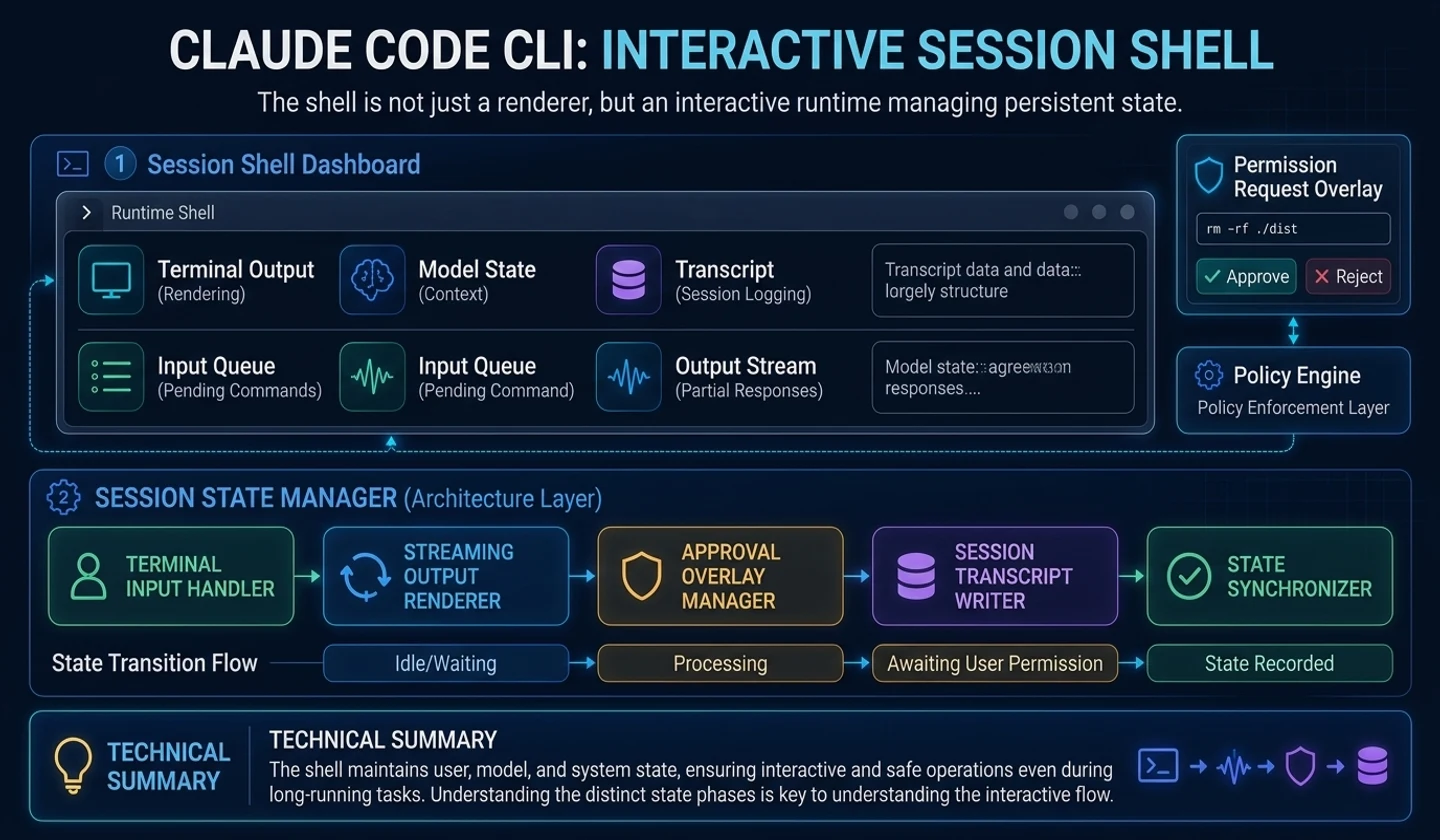
- The terminal agent's screen is closer to a runtime state container than a simple renderer.
- The message displayed on the screen, the message sent to the model, and the message saved in the transcript are different.
- Approval UI, input queue, partial stream, and overlay status should be coordinated in one place, but policy judgment should be separated.
- Developers using AI tools need to be able to understand what state is pending when the screen appears to be frozen.
In this article, we will look at the Claude Code-type terminal screen as runtime shell, not UI.
On the surface, it looks like all there is is an input window and a message list. However, the product-level agent's screens simultaneously handle ongoing model streams, tool approval, input queues, local command overlays, cost notifications, cancellation status, and session recovery information.
At this point, many agent demos fail to make it into production. This is because the status displayed on the screen and the status transmitted to the model are managed in the same list.
1. Why is the screen a runtime shell?
The screen in the terminal agent is not a simple output window. On the same screen, the user enters a question, views the model's partial response, decides to approve the tool run, hits Cancel, and enters new input again.
In other words, the screen is a surface where multiple flows meet.
| situation | Is it necessary for the screen? | Is it necessary for the model? | Is it necessary for records? |
|---|---|---|---|
| user input | yes | yes | yes |
| assistant partial text | yes | Required after final assembly | Yes, usually summary or final value |
| Approval dialog text | yes | Usually no | Yes, based on approval results |
| local command overlay | yes | In some cases no | yes |
| Cost Reminder | yes | no | yes |
| tool result | Yes, in summary form | Yes, structured form | yes |
Sending all text on the screen to the model pollutes the context. Conversely, if the tool results needed for the model are saved only as screen strings, the next inference will not proceed.
2. Expression of three messages
A product agent must project the same event in three ways.
- UI projection: Human-readable message, collapse/expand, progress indicator.
- Model projection: role, content block, tool result, system context.
- Ledger projection: timestamp, turn id, cost, approval, restore metadata.
Making this distinction from the beginning will make subsequent functions easier. For example, the tool result may appear as “3 files read” on the screen, but the model should contain a structured summary or observation of each file. The transcript must indicate when it was read and with what authority.
3. Session shell state structure
A session shell can have the following states:
| status group | example |
|---|---|
| conversation state | User message, assistant message, tool result |
| input state | Current input value, paste buffer, attachment, editor selection |
| execution state | active turn, abort signal, pending input queue |
| approval state | tool permission prompt, sandbox confirmation |
| overlay state | Setting screen, help, cost notice, local command result |
| integration state | remote prompt, bridge event, session restore data |
The important thing is that the shell does not determine all policies. The shell stores state and receives user interaction, but a separate layer must decide whether to determine permissions or execute tools.
Practical Tips Make the screen layer responsible for “what to show” and the policy layer responsible for “what to allow.” If these two are mixed, they will have to be modified again when creating headless batch mode or remote sessions.
4. Separation of approval UI and policy engine
When the agent attempts to write a file or execute a shell command, a confirmation dialog should appear on the screen. However, the dialog itself should not determine “is this operation dangerous?”
The policy engine makes the decision first.
# How to read: The items below are summarized examples to quickly check the action flow.Tool Requestto policy engine: allow / deny / ask questionto session shell: Display question required status in UIto select userto policy decision recordto tool runtime generates execution or rejection resultsThis structure is also good for testing. You can test the policy engine without a UI, and in batch mode rather than an interactive shell, the “Question Required” status can be automatically rejected or handled with a prior policy.
5. Shell design through conceptual code
The code below is the newly written concept code.
# How to read: Conceptual code that describes runtime boundaries, not a clone of the actual implementation.class SessionShell: # Initializes runtime dependencies and state storage that the object will reference in later steps. def __init__(self): self.visible_timeline = [] self.model_history = [] self.ledger_buffer = [] self.input_buffer = "" self.pending_inputs = [] self.approval_stack = [] self.current_overlay = None self.active_turn_id = None # Route one runtime event to each representation for the screen, model, and record. def publish(self, event): if event.show_to_user: self.visible_timeline.append(render_for_screen(event)) if event.send_to_model: self.model_history.append(render_for_model(event)) if event.recordable: self.ledger_buffer.append(render_for_ledger(event)) # Before executing the tool, requests that require user approval are uploaded to the overlay stack. def open_approval(self, approval_request): self.approval_stack.append(approval_request) self.current_overlay = "approval" # The approval result is recorded as an event and the next overlay state is restored. def close_approval(self, decision): request = self.approval_stack.pop() self.publish(make_approval_event(request, decision)) self.current_overlay = "approval" if self.approval_stack else NoneThe key ispublish(). A runtime event is reflected in different ways in the UI, model, and ledger. Without this structure, it becomes difficult to deal with “what should be visible to the user but not to the model” later.
6. Signals that AI developers should read
Developers using AI tools must be able to infer the runtime state by looking at the screen.
| screen signal | Possible runtime states |
|---|---|
| Answers are streaming but new input is displayed | Has an active turn and enters the input queue |
| Approval window pops up and response stops | tool runtime waits for permission decision |
| Only local command results are displayed and there is no model response. | Input is treated as a local-only action |
| Cost or token warning displayed | ledger/accounting approaches budget threshold |
| After canceling, you see a failure result instead of “no result” | Generate abort results to match tool request/result pairs |
The clearer the signal, the easier it is to trust in practice.
7. Mistakes that agent developers should avoid
The first mistake is to use the UI message list as model history. In this way, cost notifications, help phrases, and approval dialog descriptions can be mixed into the model context.
The second mistake is storing partial streams as final messages. Streaming text is an intermediate state. It must be distinguished from the assistant message assembled after the final response is closed.
The third mistake is to allow the overlay to permanently block queue processing. Even if the settings screen is open, background events or cancellation signals must be handled.
8. Practical checklist
# How to read: The items below are summarized examples to quickly check the action flow.Session Shell Checklist [ ] UI timeline and model history are separated.[ ] Ledger records are created separately from UI/model projection.[ ] Partial stream and final assistant message are distinguished.[ ] The approval UI does not directly make policy decisions.[ ] The pending input queue and approval queue are managed independently.[ ] Cancel/background events can be handled even if the overlay is open.[ ] Remote input and local input enter the same submit boundary.Practical example: Separating screen messages and transcripts
The terminal screen is a mix of ongoing spinners, short instructions, an accept button, and a failure summary. However, the transcript should contain only events that can be reproduced later. For example, on a screen requesting permission to write a file, the UI phrase “Do you want to modify this file?” may appear, but the transcript must contain the approval target path, requested tool call, approval result, and execution result in a structured manner.
| Information needed on screen | Information needed for transcript |
|---|---|
| current progress | turn id and event type |
| A short description to show to the user | Tool request id and argument summary |
| Accept button or Cancel button | Permission decision and basis |
| Human-readable error text | Whether retry is possible and error code |
A failure case is when the screen log is entered as is into the model context or transcript. If spinner phrases, duplicate progress messages, and long shell output pile up, costs increase and it becomes difficult to find events necessary for actual judgment. Conversely, if the transcript is too sparse, it cannot later explain “what the user approved”. The session shell is not a layer that makes the UI pretty, but a layer that separates the display that humans see from the events that the runtime records.
finish
If you look at Claude Code's terminal UI as a runtime shell, the difficulty of AI agent development becomes clearer. The screen is not just a place to display things pretty, but a place to project various runtime states to prevent them from colliding.
The next article will cover the moment the user presses Enter. A one-line prompt is not a direct model call, but an agent turn that passes the submit boundary.
댓글
GitHub 계정으로 로그인하면 댓글을 남길 수 있습니다. 댓글은 GitHub Discussions를 통해 운영됩니다.